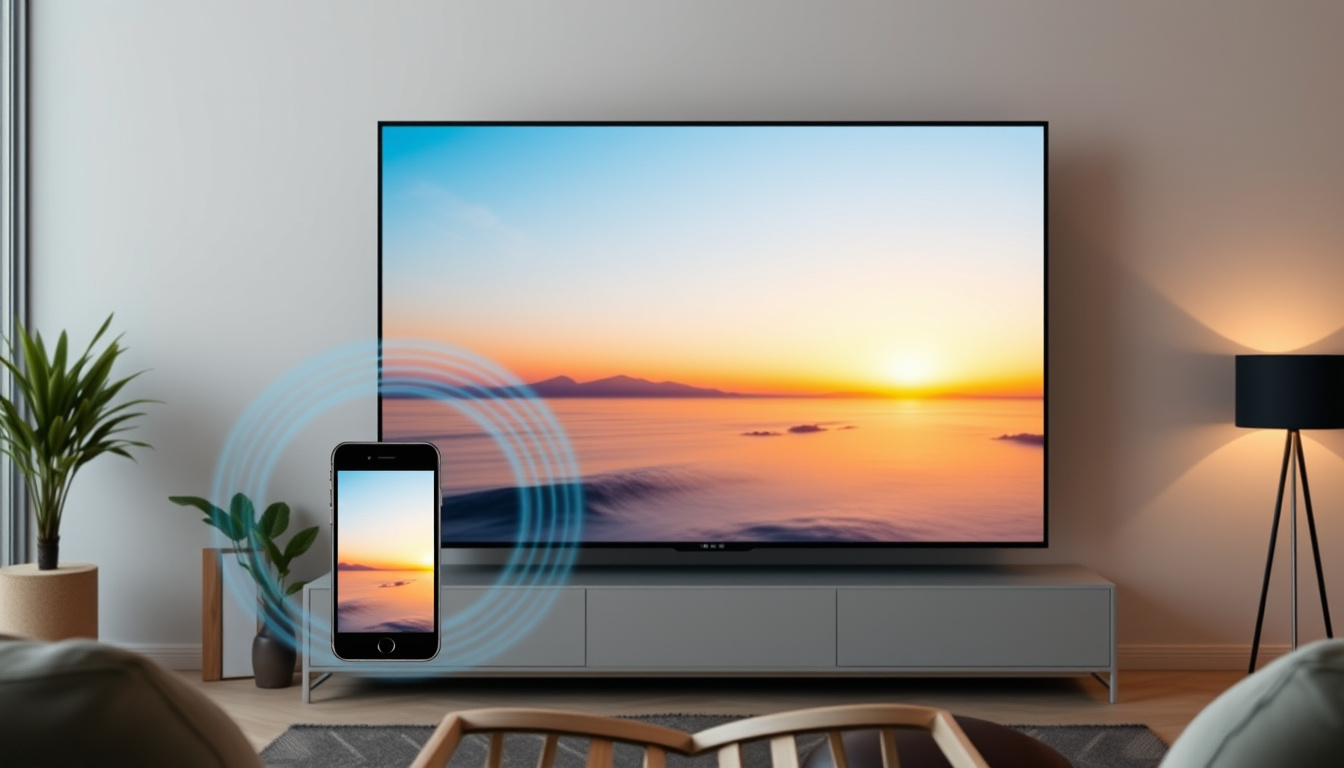

Screen mirroring has become a fundamental feature for anyone wanting to display their phone, tablet, or computer content on a larger screen without cables. Whether sharing photos with family, giving a presentation at work, or streaming content to a smart TV, understanding how this technology works helps users choose the right approach for their needs. This guide explains screen mirroring in detail, compares it with related technologies, and provides practical setup instructions for common devices.
The term describes a specific wireless display technique that differs from other content-sharing methods. Knowing these distinctions prevents frustration and ensures smoother experiences when connecting devices at home or in professional settings.
What Is Screen Mirroring?
Screen mirroring duplicates a device’s entire display output in real-time to another screen, such as a television, monitor, or projector. Everything visible on the source device appears simultaneously on the receiving display, including the home screen, apps, notifications, and ongoing activities. This creates an exact replica rather than selecting specific content to share.
Core Definition
The technology relies on wireless communication protocols that transmit display data from one device to another. Once connected, the receiving screen becomes a wireless extension of the source device’s interface, updating instantly as users navigate their phone or computer. The source device remains active and in use during mirroring, though its screen content is duplicated elsewhere.
Key Use Cases
Screen mirroring serves various purposes across personal and professional environments. Users commonly share photographs and videos with groups on larger screens, display mobile apps during meetings, or mirror gameplay from phones to TVs for a better viewing experience. In educational settings, teachers mirror tablets to classroom displays to demonstrate apps or content. Business professionals use the feature for slideshow presentations without needing HDMI cables or adapters.
Screen mirroring captures and transmits everything visible on a device’s screen in real-time. Unlike selective sharing methods, no specific app or content type is chosen—the entire interface transfers to the receiving display with minimal delay.
Real-time duplicate of device screen on another display
Miracast (Android/Windows), AirPlay (Apple), Google Cast
Wireless, easy setup | Cons
Latency, bandwidth needs
Presentations, gaming, media sharing
Key Insights
- Mirroring duplicates the entire user interface rather than streaming selected content
- Source devices typically cannot run other apps simultaneously while mirroring
- Battery consumption increases significantly during extended mirroring sessions
- Network quality directly affects display responsiveness and image quality
- Ecosystem limitations apply—Apple devices work primarily with AirPlay-compatible hardware
- Latency ranges from 50 to 500 milliseconds depending on protocol and network conditions
Snapshot Facts
| Fact | Details |
|---|---|
| Launch Year | Miracast: 2012 |
| Top Protocols | Miracast, AirPlay 2, Google Cast |
| Latency Range | 50-200ms typical |
| Requirements | Wi-Fi network, compatible hardware |
| Security | WPA2/WPA3 encryption recommended |
| Ecosystem Lock | AirPlay limited to Apple devices |
How Does Screen Mirroring Work?
The technology operates through wireless protocols that establish direct communication between devices. When a user initiates mirroring, the source device encodes its display data and transmits it over the local network or through direct wireless connections. The receiving device decodes this stream and renders it on its own screen, synchronizing every visual element in near real-time.
Wireless Protocols Involved
Three primary protocols dominate the screen mirroring landscape. Miracast, established by the Wi-Fi Alliance in 2012, provides an open standard adopted by Android devices and many Windows computers. It uses Wi-Fi Direct for peer-to-peer connections that do not require an internet router.
AirPlay serves Apple’s ecosystem exclusively, enabling iPhones, iPads, and Macs to transmit content to Apple TV devices and AirPlay-compatible receivers. The protocol has evolved significantly since its introduction in 2010, now supporting 4K resolution and multi-room audio configurations.
Google Cast, the protocol behind Chromecast devices, handles both casting and mirroring functions. While primarily designed for sending specific content from apps, Chromecast also supports full-screen mirroring from Android devices and Chrome browsers through Wi-Fi Display specifications.
Step-by-Step Process
The mirroring process follows a consistent sequence regardless of platform. First, both devices must be connected to the same Wi-Fi network or within range for Wi-Fi Direct connections. Next, the source device scans for available receivers and displays them to the user. After selecting the target display, a connection handshake verifies compatibility and establishes the secure link.
Once connected, the source device continuously captures screen content, compresses it using efficient video codecs, and streams this data to the receiver. The receiving device decompresses and renders each frame, typically at 30 or 60 frames per second depending on hardware capabilities and network bandwidth. Users observe their phone or computer screen appearing on the TV with minimal perceptible delay.
Miracast connections can operate without a Wi-Fi router using Wi-Fi Direct, while AirPlay and Google Cast require both devices to share the same network infrastructure. Understanding these requirements helps troubleshoot connection issues more effectively.
Screen Mirroring vs. Screen Casting: Key Differences
Though the terms frequently appear together, screen mirroring and screen casting describe distinct approaches to wireless content sharing. Understanding these differences helps users select the appropriate method for specific scenarios.
Mirroring Mechanics
Mirroring transmits the complete device interface to the receiving screen, including all visible elements simultaneously. This approach requires continuous bandwidth since every pixel update must travel from source to display. Battery consumption on the source device increases noticeably during mirroring sessions. The technique suits situations requiring full visibility of the source device’s current state, such as live demonstrations, gaming, or accessing apps not natively available on the display device.
Casting Advantages
Casting focuses on sending particular content—typically media files—directly from an app to the receiver. The processing burden shifts to the receiving device or streaming hardware, which fetches content independently from the internet. This approach frees the source device for other tasks, as users can close the casting app or lock their phone without interrupting playback. Google Cast and similar protocols optimize for streaming efficiency, often delivering better video quality with lower latency for media consumption.
| Feature | Screen Mirroring | Screen Casting |
|---|---|---|
| Content Shared | Entire screen/interface in real-time | Specific media (audio/video) only |
| Device Usage | Source device screen duplicated; no multitasking | Source device free for other apps |
| Performance | Higher latency, battery drain | Lower latency, efficient codecs |
| Best For | Demos, games, photos on big screen | Streaming videos/music (YouTube, Netflix) |
| Battery Impact | High drain; local Wi-Fi focus | Lower drain; may need internet for content |
How to Screen Mirror from Phone to TV or PC
Setting up screen mirroring varies depending on the source device operating system and the target display type. The following instructions cover the most common scenarios for Android phones, iPhones, and connections to computers.
Android Devices
Most Android devices running Android 4.2 or later include native mirroring support. Users access this feature through the quick settings panel by selecting “Cast,” “Smart View,” or a similar option depending on the device manufacturer. The menu displays available Miracast-compatible TVs and Chromecast devices on the local network. Tapping the desired receiver initiates the connection, and the TV displays the phone’s screen shortly afterward.
For Chromecast specifically, some apps provide a dedicated Cast button that sends only that app’s content rather than mirroring the entire screen. This approach often produces better results for media streaming while preserving phone battery life. Users should verify that both the Android device and TV support the same Miracast profile for reliable connections.
iPhone and iPad
Apple devices utilize AirPlay for all wireless display connections. Users navigate to Control Center by swiping down from the top-right corner on Face ID devices or up from the bottom on devices with a Home button. The Screen Mirroring option reveals available Apple TV units and AirPlay-compatible smart TVs. Selecting a receiver immediately begins mirroring the device’s screen.
Unlike Android, iPhones do not support native Miracast or Google Cast mirroring. Third-party applications can bridge this gap but introduce additional complexity and potential compatibility issues. For Chromecast users, casting from individual apps like YouTube or Netflix remains possible without full mirroring functionality.
Connecting to PCs and Laptops
Windows 10 and later operating systems include built-in Miracast support through the Connect app. Users access this by pressing Windows Key + K to open the casting menu, which scans for available wireless displays. This approach enables mirroring Android phones to Windows PCs without additional software.
Mac users leverage AirPlay to send their screen to Apple TV devices. The AirPlay icon appears in the menu bar when compatible receivers are detected on the network. Third-party applications like Reflector or AirServer extend PC capabilities by allowing Android mirroring to Mac or Windows computers, though these require installation and sometimes purchase.
Connection failures typically stem from network configuration issues. Verify both devices share the same Wi-Fi network, restart both devices and the router if necessary, and ensure firewall settings permit wireless display traffic. Using the 5GHz Wi-Fi band often improves stability over the more congested 2.4GHz frequency.
Supported Devices and Best Apps for Screen Mirroring
Device compatibility determines which mirroring options remain available to users. Understanding hardware and software support ensures purchases and configurations align with actual capabilities.
Compatible Hardware
Android smartphones and tablets manufactured since 2013 almost universally support Miracast mirroring. Major manufacturers including Samsung, LG, Sony, and Motorola incorporate the standard into their Android implementations. Smart TVs from Samsung, LG, Sony, and Vizio typically include Miracast support alongside proprietary protocols, enabling direct Android mirroring without additional hardware.
Apple devices work exclusively with AirPlay-compatible receivers. This includes Apple TV streaming boxes and smart TVs with built-in AirPlay 2 support from manufacturers like Samsung, LG, Vizio, and Sony. Older televisions require external adapters such as Apple TV units to enable iPhone mirroring.
Desktop and laptop computers offer varying levels of support. Windows 10 and 11 computers with Wi-Fi can use the native Connect app for Miracast mirroring. Chromebooks support Google Cast natively, making them compatible receivers for Android devices. Macs and MacBooks work seamlessly with AirPlay, mirroring to Apple TV or AirPlay-enabled displays.
Top Free Apps
Most modern devices include mirroring functionality without additional downloads. Native options include the Cast/Smart View menu on Android, Screen Mirroring in iOS Control Center, and the Windows Connect application. These built-in solutions typically offer the most reliable performance for devices within the same ecosystem.
Third-party applications extend cross-platform capabilities. Google Home assists with Chromecast setup and network management. For users needing Android-to-AirPlay or iOS-to-Miracast bridging, applications like Reflector and AirServer enable these combinations on computers, though they require purchase for full functionality.
Users seeking the simplest experience should stick within their device ecosystem—Apple devices with Apple TV, Android devices with Chromecast or Miracast TVs. Mixing ecosystems often requires additional hardware or software purchases and may sacrifice features or performance.
Security and Privacy Considerations
Screen mirroring transmits visual data wirelessly, raising legitimate security questions about what information might be intercepted or exposed during the process.
All major protocols encrypt data during transmission, with Miracast using WPA2 encryption through Wi-Fi Direct connections. AirPlay and Google Cast require network authentication before establishing links, adding layers of security beyond the transmission itself. These measures protect against casual eavesdropping on the same network.
However, certain precautions remain advisable. Using open public networks for mirroring introduces risk since others on the same network could potentially intercept traffic. Configuring routers with strong WPA3 encryption when available provides additional protection. Users should avoid mirroring sensitive information like banking credentials or personal messages in public spaces where strangers might glimpse the display.
Established: Protocols use encryption standards; WPA2/WPA3 recommended; no major protocol breaches documented. Uncertain: Performance varies significantly by network quality; latency claims from manufacturers often represent optimal conditions rather than typical usage; 2025-specific protocol updates require verification with current manufacturer documentation.
Evolution of Wireless Display Technology
Wireless display technology has evolved considerably since its commercial introduction, with standards maturing and capabilities expanding significantly over the past decade.
The technology landscape shifted substantially in 2012 when the Wi-Fi Alliance certified Miracast as an industry standard. This development standardized Android’s native wireless display functionality with Android 4.2, making mirroring available across a wide range of devices without manufacturer-specific implementations. Google’s Chromecast launch in 2013 introduced a different paradigm focused on content casting rather than full device mirroring.
Apple’s AirPlay evolved from its 2010 introduction through significant updates, with AirPlay 2 arriving in 2018 to enable multi-room audio streaming and improved reliability. The protocol gained 4K support and broader smart TV integration as the technology matured. Today, all three major ecosystems offer mature, reliable solutions, though cross-ecosystem compatibility remains limited.
- 2010: Early AirPlay mirroring introduced with iOS 4
- 2012: Wi-Fi Alliance certifies Miracast standard
- 2013: Android 4.2 adds native Miracast support
- 2013: Google launches Chromecast with Google Cast protocol
- 2018: AirPlay 2 introduces multi-room and 4K support
- 2024+: Integration with emerging smart home standards continues
The technology continues evolving as manufacturers incorporate newer wireless standards and improved compression algorithms, though detailed roadmaps for 2025-specific enhancements require verification from official manufacturer sources.
Conclusion
Screen mirroring provides a straightforward way to display mobile device content on larger screens without physical cables. The technology works through established wireless protocols—Miracast for broad Android and Windows compatibility, AirPlay for Apple devices, and Google Cast for Chromecast ecosystems. Understanding the distinction between mirroring the entire screen versus casting specific content helps users select the appropriate method for their needs.
Most modern devices include native mirroring capabilities, requiring no additional purchases for users remaining within their device ecosystem. Security measures built into current protocols provide reasonable protection for typical home and office use, though users handling sensitive information should exercise caution on public networks. For those interested in hydration tracking and related wellness topics, screen mirroring offers a convenient way to view content on bigger displays while managing daily activities.
Frequently Asked Questions
Is screen mirroring secure?
Yes, current protocols include encryption standards. Miracast uses WPA2 through Wi-Fi Direct, while AirPlay and Google Cast require network authentication. Using secured home networks with WPA3 encryption provides additional protection against potential interception.
What is the difference between screen mirroring and screen casting?
Mirroring duplicates your entire device screen in real-time, while casting sends specific content like videos or music to the display. Mirroring requires continuous source device involvement; casting allows multitasking on the source device while content plays independently.
Why is my screen mirroring laggy?
Lag typically results from network congestion, distance from the router, or using the 2.4GHz Wi-Fi band instead of 5GHz. Closing background applications on the source device and ensuring a clear line of sight to the router often improves performance.
Can I mirror my iPhone to a non-Apple TV?
Native iPhone mirroring requires AirPlay-compatible receivers. Smart TVs from Samsung, LG, Vizio, and Sony built after 2018 often include AirPlay 2 support. Older TVs need an Apple TV box or third-party receiver hardware to enable iPhone mirroring.
What should I do if screen mirroring won’t connect?
Verify both devices use the same Wi-Fi network, restart both devices, and ensure the target display is powered on and in pairing mode. Updating device firmware and router firmware often resolves compatibility issues. Using a wired ethernet connection for the TV can improve stability.
Does screen mirroring work without Wi-Fi?
Miracast supports Wi-Fi Direct, allowing direct device-to-device connections without a router. AirPlay and Google Cast require both devices to connect to the same Wi-Fi network for initial setup and ongoing communication.
How much battery does screen mirroring use?
Mirroring consumes significantly more battery than normal use because the device continuously captures, encodes, and transmits screen content. Users should keep their device plugged in during extended mirroring sessions to prevent battery depletion.
What devices support screen mirroring?
Most Android devices (4.2+), iPhones and iPads (iOS), Windows 10/11 PCs, and Chromebooks support some form of wireless display. Smart TVs from major manufacturers include compatible receivers, while older TVs may require external dongles or streaming boxes.
Related stories





Hannah Walsh covers municipal government, councils, transit and local services across Canada.