
How to Take a Screenshot on Chromebook: A Complete Guide
Published: January 15, 2024
Taking screenshots on a Chromebook is a fundamental skill that becomes invaluable whether you’re saving important information, sharing content with colleagues, or documenting troubleshooting steps. Chromebooks offer several built-in methods for capturing your screen, each suited to different needs and preferences.
Quick Screenshot Methods
Chromebooks provide straightforward keyboard shortcuts that make capturing your screen fast and efficient. Understanding these basic methods will help you handle most screenshot situations without interruption.
Full Screen Capture
Press the Ctrl + Show Windows keys simultaneously to capture your entire screen. The Show Windows key typically features a rectangle with two small lines on the right side, located in the top row of your keyboard where the F5 key would normally appear on traditional keyboards.
Partial Screen Capture
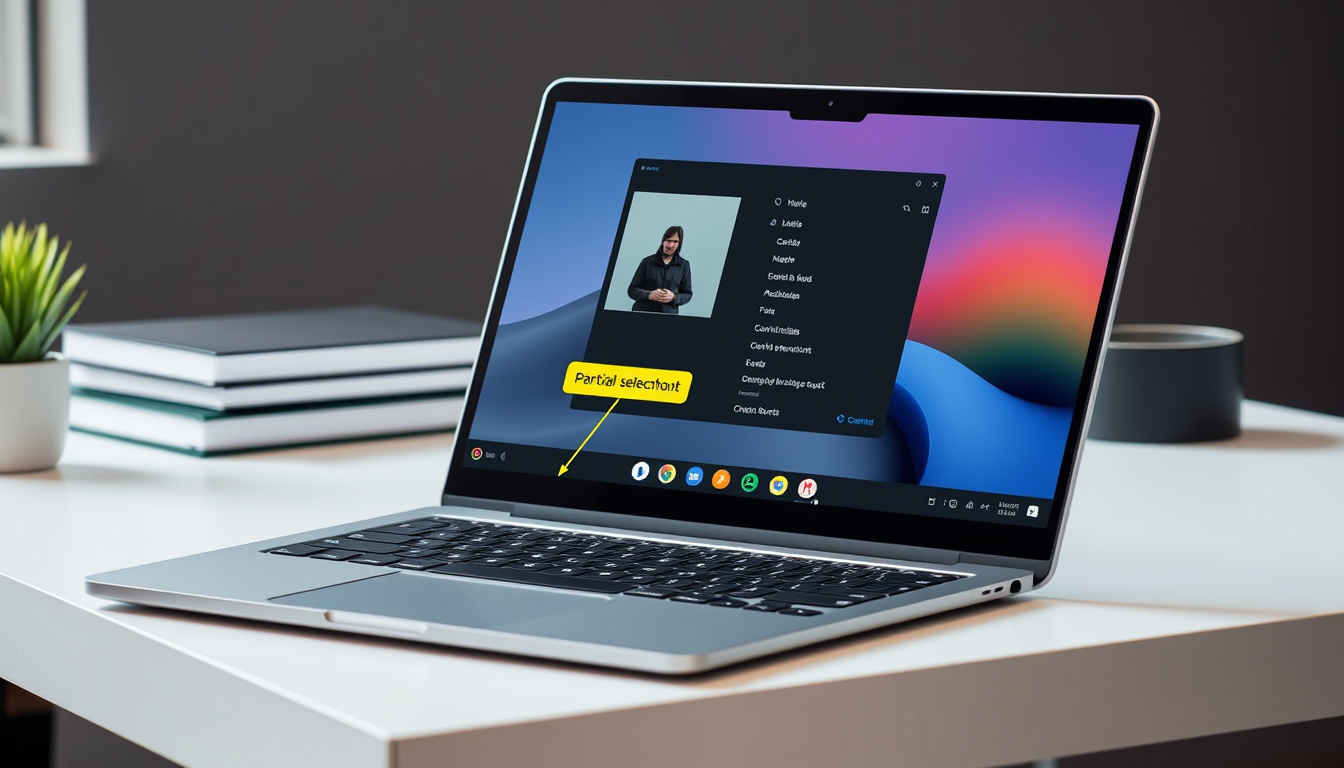
Combine Shift + Ctrl + Show Windows to activate a selection tool. This allows you to click and drag across the specific area you want to capture, giving you precise control over what appears in your screenshot.
Essential Keyboard Shortcuts
Mastering these shortcuts transforms screenshot-taking from a multi-step process into a seamless action that takes only seconds.
- Ctrl + Show Windows: Captures the entire screen instantly
- Shift + Ctrl + Show Windows: Opens the screen selection tool for partial captures
- Ctrl + Alt + Show Windows: Captures a specific window when selected
These shortcuts work consistently across all modern ChromeOS versions, though the availability of certain features may vary depending on your specific device and operating system version.
Where Screenshots Are Saved
Understanding where your screenshots land helps you locate and manage them effectively. By default, Chromebook screenshots save directly to your Downloads folder in PNG format. This automatic organization makes it easy to find your captures without additional steps.
Each screenshot receives a timestamp-based filename following the format “Screenshot [date] at [time].png,” allowing you to quickly identify when specific captures were made.
Using the Built-in Screenshot Tool
ChromeOS includes a dedicated screen capture application accessible through your system tray or app launcher. This tool provides additional options beyond keyboard shortcuts, including delayed captures and annotation capabilities.
Accessing the Screenshot Utility
Click the clock icon in your system tray to reveal the screenshot tool, or search for “Screen capture” in your app launcher. The interface presents you with clear options for full screen, partial area, and window captures.
Alternative Methods and Tools
Beyond the native ChromeOS functionality, several alternative approaches exist for capturing and editing screenshots on your Chromebook.
Chrome Browser Extensions
The Chrome Web Store offers numerous screenshot extensions that extend your capabilities beyond basic captures. These tools often include advanced features like scrolling capture, direct sharing options, and built-in editing tools.
Android Apps
If your Chromebook supports Android apps, you can install screenshot applications from the Google Play Store for additional functionality and integration with mobile workflows.
Editing and Annotating Screenshots
After capturing a screenshot, you can enhance it using the built-in image editor. Right-click any screenshot and select “Open with” to access editing options. The editor allows you to add text, draw, crop, and highlight specific areas before sharing.
For more advanced editing needs, several compatible applications work well on Chromebooks, including Google Photos, Pixlr, and Sumo Paint—all offering robust annotation tools without requiring external devices.
Sharing Your Screenshots
Chromebooks make sharing captured images straightforward through multiple channels. Attach screenshots directly to emails, share them through Google Drive, or upload to cloud storage services for easy access across devices.
The Files app on ChromeOS provides built-in sharing functionality, allowing you to quickly generate shareable links or send screenshots through your preferred communication platforms.
Troubleshooting Common Screenshot Issues
If you encounter problems capturing screenshots, several common solutions often resolve the issue quickly.
Screenshot Shortcuts Not Working
Verify that your ChromeOS is up to date through Settings > About ChromeOS > Check for updates. Outdated operating systems may experience conflicts with keyboard shortcuts. Additionally, ensure no other applications are currently capturing keyboard input.
Screenshots Not Saving
Check that your Downloads folder exists and has available storage space. If the folder is missing or inaccessible, restart your Chromebook to restore standard file system behavior.
Summary
Taking screenshots on a Chromebook involves straightforward shortcuts and built-in tools designed for efficiency. The primary method—pressing Ctrl + Show Windows—captures your entire screen instantly, while Shift + Ctrl + Show Windows enables selective area captures. Screenshots save automatically to your Downloads folder in PNG format, organized by timestamp for easy identification. For advanced needs, Chrome extensions and Android apps extend functionality further. Regular updates to ChromeOS ensure compatibility with these features, making screen capture a reliable tool for productivity, communication, and documentation.
Frequently Asked Questions
Where do Chromebook screenshots go?
Chromebook screenshots save automatically to your Downloads folder in PNG format. Each file receives a descriptive name based on the capture date and time.
What is the Show Windows key on a Chromebook keyboard?
The Show Windows key appears in the top row where F5 would typically be located on traditional keyboards. It features a small rectangle with lines and enables screen capture functions when combined with Ctrl and Shift keys.
Can I take a screenshot of just one window?
Yes. Press Ctrl + Alt + Show Windows to capture only the currently selected window, excluding other areas of your screen from the capture.
How do I edit a screenshot on ChromeOS?
Right-click any screenshot file and select “Open with” to access the built-in image editor. You can add text, draw, crop, and highlight areas directly within ChromeOS without additional software.
Can I use third-party screenshot tools on Chromebook?
Yes. Chrome extensions available through the Web Store offer advanced screenshot features including scrolling captures, direct cloud uploads, and enhanced annotation tools.
Related stories





Jessica Morin covers provincial policy and regional economic trends.